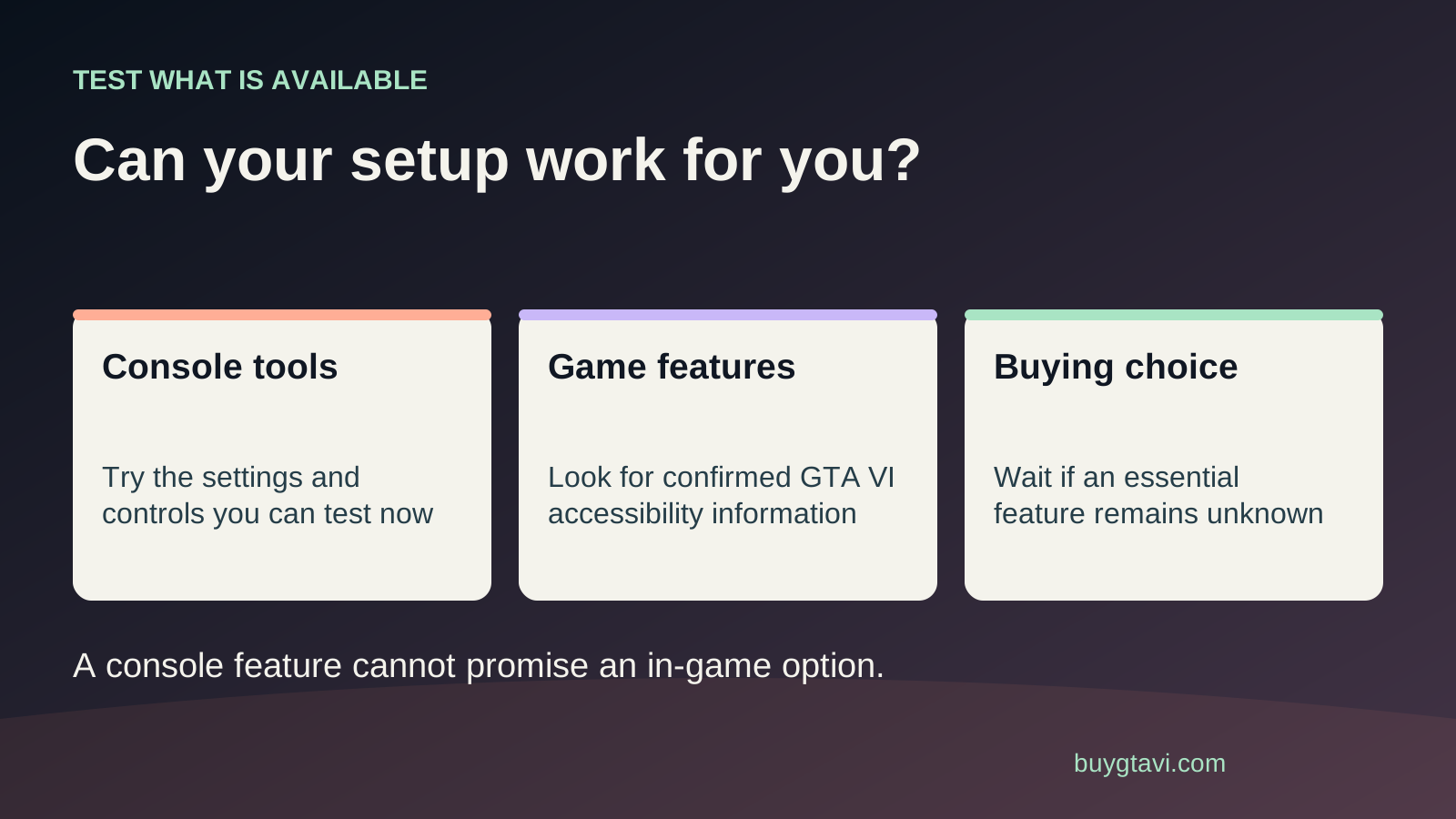
Choose GTA VI using evidence about the features you personally need. The official purchase information checked for this guide does not provide a full GTA VI accessibility menu. PS5 and Xbox have useful accessibility tools, but those tools do not prove that the game offers menu narration, large subtitles, reduced button presses or any other specific in-game option. If an unknown feature decides whether you can play, wait for clear documentation or a real test.
| Need | Evidence to seek | What is not enough |
|---|---|---|
| Read important text | Actual text-size options and your viewing-distance test | Subtitles added to a trailer |
| Reduce input effort | Required holds, repeated inputs and available alternatives | A remap label without the action tested |
| Follow without hearing | Dialogue and important sound cues in use | A general subtitles label |
| Use adaptive hardware | Complete compatible layout tested with required tasks | A console controller announcement alone |
Start with the task that causes trouble
Accessibility is about making a game usable for the person playing it. The most helpful first question is not whether a game has a long settings list. It is what you need help doing. You might struggle to read small text, hear a spoken instruction, hold a trigger, aim while moving or keep up with quick prompts. Two people can need very different things, so a broad statement that a game is accessible is rarely enough for a purchase.
Write your needs in everyday language. Try 'I need to read dialogue from my sofa,' 'I cannot hold this button for long,' or 'I need to understand important sounds without hearing them.' Those sentences lead to clear checks. They also make it easier to ask support a useful question. You do not have to explain a diagnosis to a retailer or publicly share personal information. A description of the task and the feature you need is enough to begin.
What is confirmed, and what remains open
Rockstar's purchase support confirms PS5 and Xbox Series X|S versions. The information checked on October 14, 2026 does not give us a complete, tested list of GTA VI accessibility settings. We cannot promise its subtitle sizes, text-to-speech coverage, aim assists, input holds, sensory settings or skip options from that purchase information. Unknown does not mean absent. It means the evidence here does not yet answer that buying question.
A trailer is not a settings test. Subtitles in a video may have been added for the video, and a clean-looking scene does not show every combat, driving or menu situation. Features in GTA V also do not establish the exact options in GTA VI. They can help you describe what you hope to find, but a sequel needs its own evidence. Look for the feature in the new game's official documentation or a clearly identified test of its actual menu and gameplay.
When a store page uses an accessibility label, read what it means. Does it name a concrete option, explain its scope and identify the platform? 'Captions' could describe dialogue without answering whether important sound effects are shown. 'Remapping' could leave some actions fixed. The word on a label is a starting point for investigation, not an automatic answer to every need in that area.
Console tools are a useful first layer
PS5's official accessibility guide describes tools including display adjustments, zoom, a screen reader and controller button assignments. Xbox documents Narrator, Magnifier, color filters and controller configuration. These are worth exploring on a console you already use. They can help with the system interface and some practical parts of the setup. Their availability does not establish how every GTA VI screen, action or sound will behave.
Think of two layers. The console controls the system menus, hardware settings and supported system tools. The game controls its own menus, text, camera, prompts and play rules. A change at the first layer may help the second, but it may not cover the problem completely. For example, enlarging a screen can make text easier to see while also hiding another part of the picture. That is a trade you need to test in use, rather than assuming bigger always means better.
If you already own a compatible console, try its tools before spending anything. Check that you can sign in, read the store, navigate settings and recover your preferred controller setup. Record what works. That creates useful preparation while you wait for game-specific evidence. If you are still choosing hardware, the PS5 and Xbox buying comparison helps keep the whole cost in view.
Check reading and vision needs at your real distance
Test text from the seat where you will actually play, on the display you will use. Leaning close to a store demo screen can make a setting appear comfortable when it is not at home. Note the text you need most: dialogue, mission instructions, map labels, inventory information or button prompts. A large subtitle setting would not, by itself, prove that every one of those areas becomes larger.
Ask for evidence that shows the relevant setting and its result. A reviewer saying the interface looks clear may use a large monitor at a desk. A screenshot can help with layout, but the device displaying that screenshot changes its apparent size. A more useful test identifies the display, viewing distance and available text adjustments. If the evidence is missing, keep the question open instead of deciding that a high-resolution screen will solve it.
For color differences, ask whether important information uses more than color alone. Can you tell icons apart by shape, labels or position? If a game offers a filter, test the exact situation that matters to you. A pleasing overall picture does not prove that a highlighted object or map marker is easy to find. These are questions to investigate in GTA VI; this guide is not claiming that any named in-game solution has been confirmed.
Check hearing needs beyond dialogue subtitles
Separate spoken dialogue from other information. You may read every conversation comfortably and still miss a sound that signals danger or points you toward an objective. Your test list could ask whether important sounds have visible cues, whether speakers are identified and whether subtitle backgrounds can make words easier to follow. A subtitles-on screenshot answers only part of that list.
Audio balance matters for some players too. If loud effects make speech hard to understand, look for separate controls and test a scene where sounds overlap. If you prefer to play without audio, ask whether the information needed to complete tasks remains understandable that way. Avoid letting a reviewer’s headphones or listening preferences stand in for yours. The important result is whether you can follow what happens using the setup you intend to use.
Check effort, holds and combined inputs
Button placement is only one part of a control barrier. Consider how long an input must be held, whether actions repeat quickly and whether two controls need to be used at once. A button remap can move an action within reach without reducing its effort. If holding a trigger is your problem, moving that trigger function to another button may still leave you holding something for too long.
Make a small task list: moving and turning together, selecting a menu item, aiming, driving, opening the map and responding to any time-sensitive prompt. These are useful kinds of tasks to investigate; the final GTA VI controls still need their own evidence. If a demonstration only shows walking, it does not settle whether a different activity fits your needs. Ask for the barrier you care about to be tested, rather than accepting a general claim that a controller works.
Adaptive hardware can be valuable, but buy it for a verified setup. PlayStation's Access controller and Xbox's adaptive devices have documented configuration options. Check the device's inputs, compatible accessories and how your planned control layout would work. Budget for the complete setup rather than the main controller alone. A specialist device cannot promise that an undocumented game setting exists, and an expensive purchase should not rest on that assumption.
Check comfort and information load
Some people need fewer flashes, gentler camera movement or clearer instructions. Others need to pause regularly, reread a task or move through menus at their own pace. List the things that interrupt your ability to follow the game, then look for documented settings or tests that address them. Treat options such as camera changes, reduced effects or prompt timing as questions until their GTA VI availability is verified.
A friend's tolerance is not a measurement of your comfort. If you have access to a legitimate demonstration after release, begin with your usual display and a short session that you can stop easily. Change one setting at a time and keep notes about the result. There is no need to push through discomfort to prove you can play. For health-specific advice, use the guidance you already follow; a buying guide cannot set a safe exposure limit for you.
Build a test that leads to a purchase decision
Sort your needs into essential and helpful. An essential feature decides whether you can use the game at all. A helpful feature makes it more pleasant but might have a workable alternative. Then record the evidence beside each need: official documentation, an exact menu demonstration, a hands-on test or still unknown. This simple list prevents one attractive feature from hiding a barrier elsewhere.
For each essential item, write a pass condition. 'Readable' is vague; 'I can read mission text from my usual seat without stopping to move closer' is useful. 'Controls feel fine' is vague; 'I can perform the required action without a painful hold' gives the test a purpose. You do not need a technical score. You need enough evidence to decide whether the experience fits your own body, attention and setup.
If you can try a friend's legitimate copy after launch, ask for time to check your own settings rather than only watching them play. Use an account and console arrangement the platform permits, and do not exchange passwords or accept a seller's shared login as a supposed trial. No GTA VI demo or free trial is promised by this guide. If no suitable test exists and an essential feature remains unknown, waiting is a reasonable purchase outcome.
Do not use a refund policy as an assumed trial
A store's refund conditions need to be read before you download or start playing. A digital purchase does not automatically include a free test period. PlayStation's US refund guidance considers the type of content, timing and download or streaming status, with exceptions described in its policy. Other stores and account countries may use different rules. Check the actual conditions rather than relying on a friend's refund from another game.
This matters even more with a boxed download code. The box is not a disc that can simply be returned to unused condition after redemption. Ask the seller about unopened packaging, redeemed codes and access problems before paying. If your essential accessibility question is still open, preorder bonuses are a weaker reason to commit than verified usability. Our preorder-or-wait guide puts that trade in the wider buying decision.
For a gift, let the player define what works
If you are buying for someone else, ask about their setup and the options they depend on. You can keep part of the surprise while checking the practical needs. A gift chosen around their actual requirements is more thoughtful than buying the most expensive edition and hoping it works. If the answer is still unknown, agree on a later purchase or another gift instead of putting the recipient in the awkward position of having to make an unsuitable game work.
Keep the player's own priorities at the center. Being able to use a console menu is progress, but it is not proof about the whole game. A long feature list is useful, but it is not a personal test. The strongest buying decision connects a specific need, a confirmed option and a result the player can actually use.
Source desk
Product details checked 2026-10-14. Live store terms can change.
- Rockstar: GTA VI confirmed purchase information ↗ Checked 2026-10-14
- PlayStation: PS5 accessibility settings ↗ Checked 2026-10-14
- Xbox: accessibility features and tools ↗ Checked 2026-10-14
- PlayStation: Access controller configuration ↗ Checked 2026-10-14
- PlayStation US: refund eligibility ↗ Checked 2026-10-14